AI Model
Upload image(0/16)
Prompt
Aspect ratio
Resolution
Public Visibility
iFree generations stay public unless you upgrade.
SOTA AI Video
SOTA AI Image Editor
Edit an image with a SOTA prompt-guided model. Compare reference limits, instruction following, resolution, format, and credit cost.
Compare AI image edits by preservation and accuracy
Edit, restyle, and prepare campaign images while checking whether the selected model preserves identity, product shape, materials, logos, and composition.

GPT-4o Image
GPT Image 2

Nano Banana Pro
Nano Banana 2
Seedream 5.0 Lite
Seedream 4.0
Nano Banana

Flux Kontext Pro
Flux Kontext Max
Qwen Image Edit

Grok Imagine Image Edit
AI Image Editor generator
AI image editing examples
Compare practical edits for product images, backgrounds, styles, sketches, and campaign-ready visuals.
Real-world applications
Where AI image editing fits your workflow
From store assets to social visuals, use AI editing for the image tasks that usually slow a launch down.
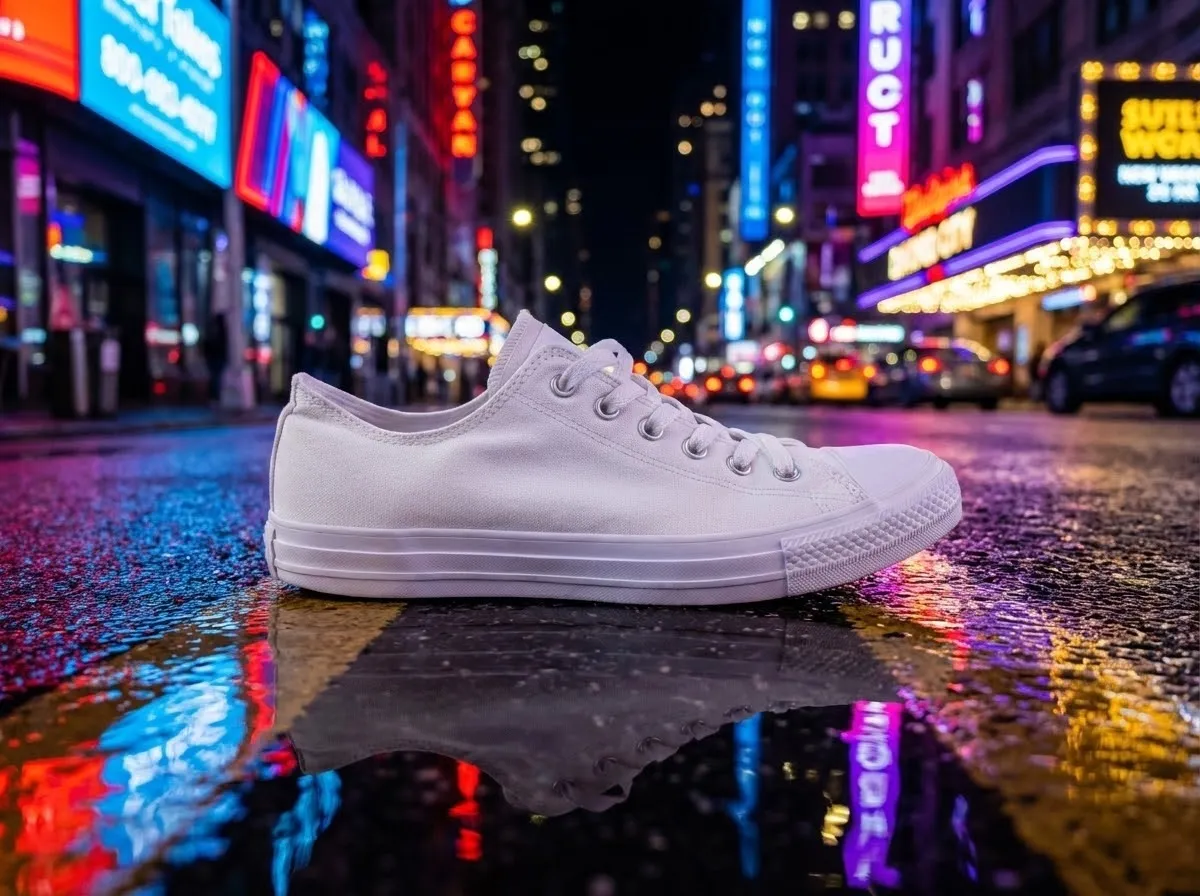
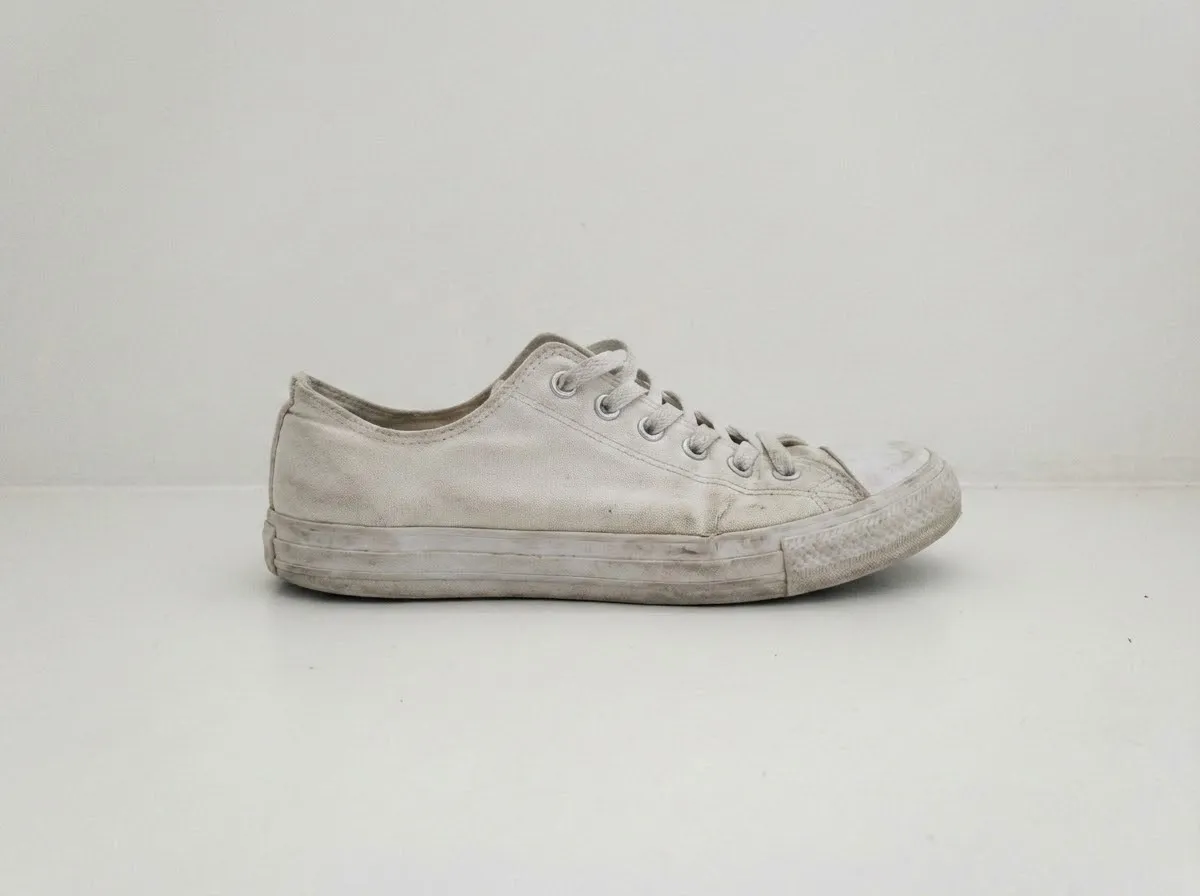 BeforeAfter
Product image refresh
Keep the product recognizable while improving lighting, background, framing, and overall campaign polish.
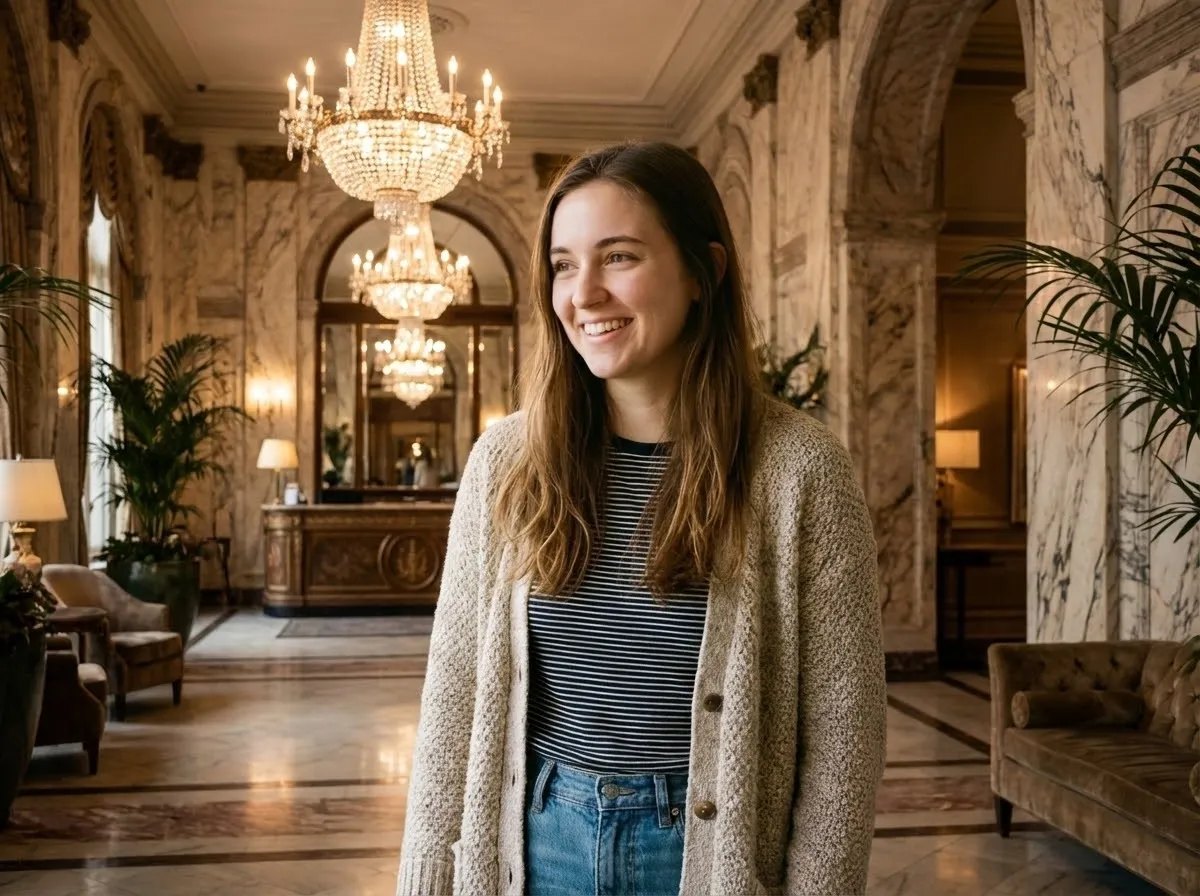
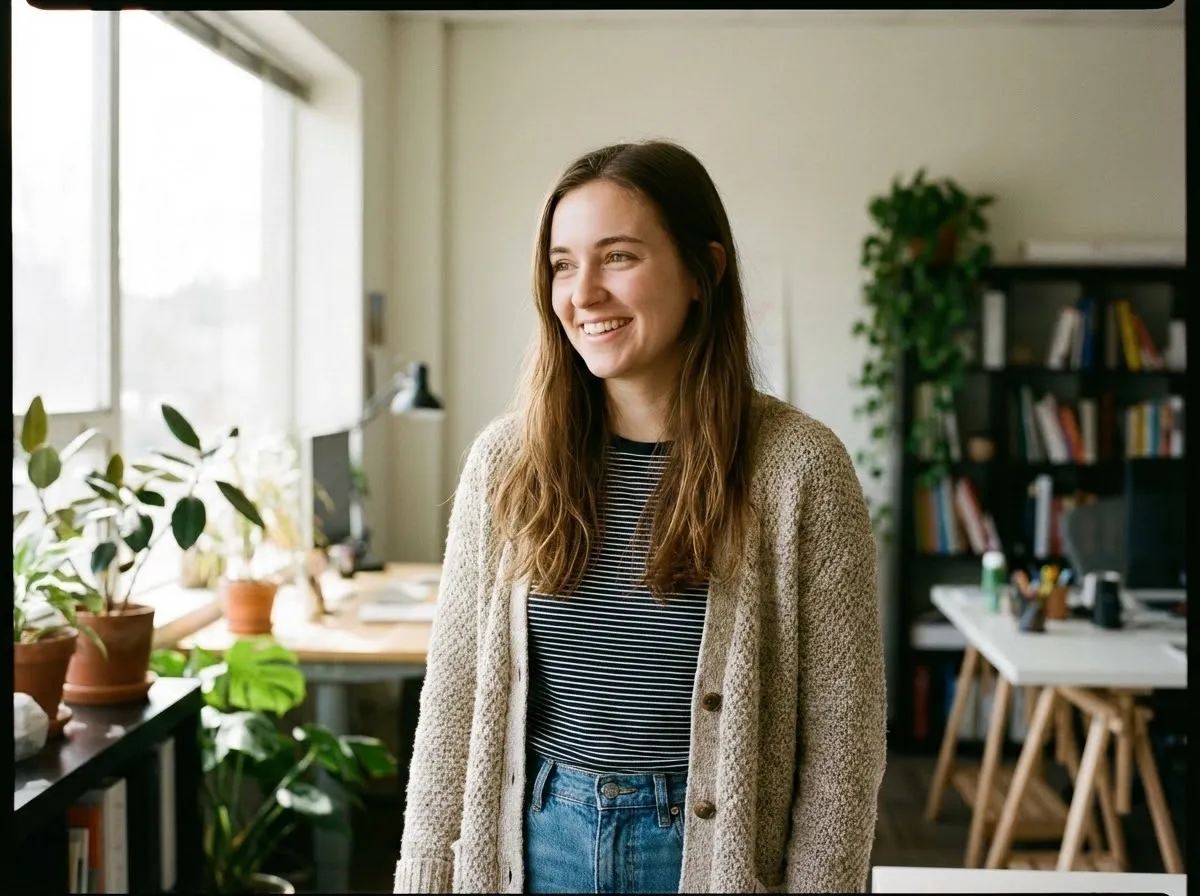 BeforeAfter
Background replacement
Move a subject into a more useful setting without reshooting the original asset.
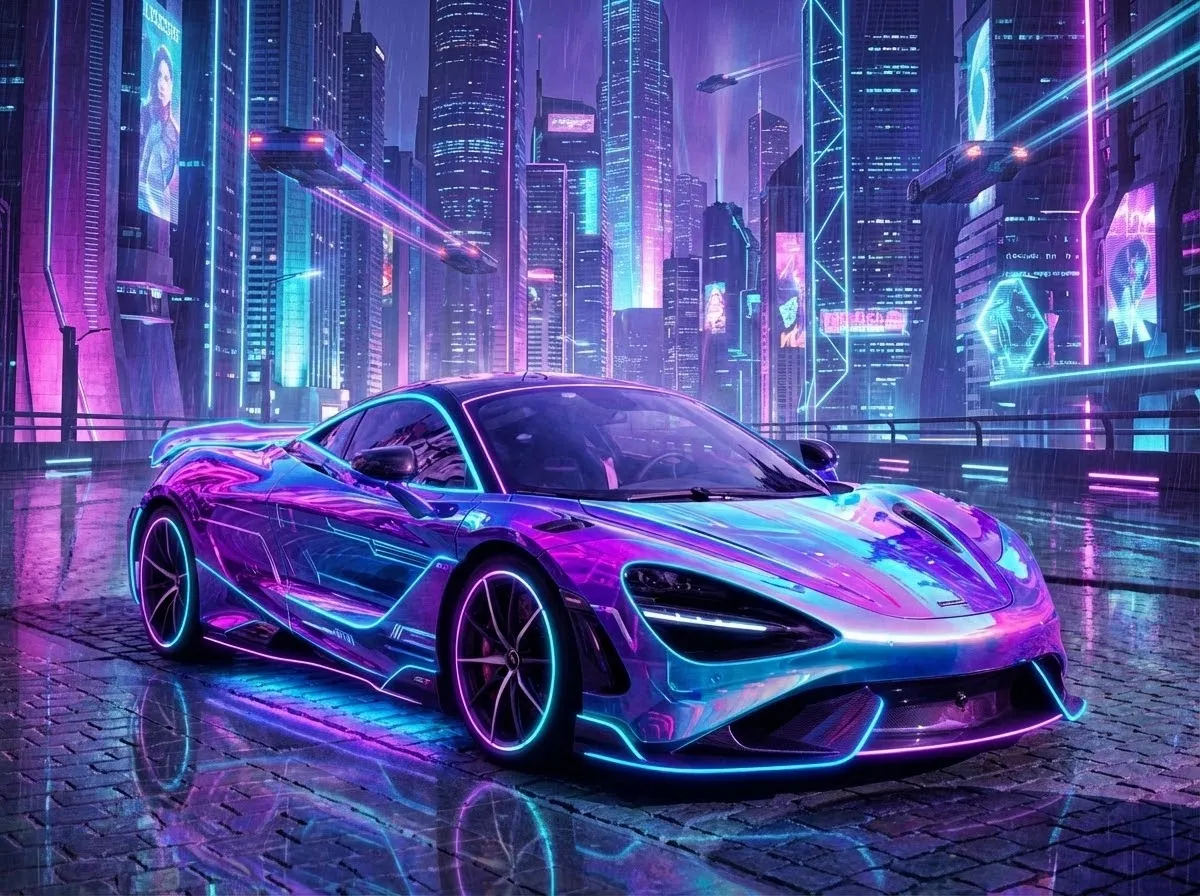
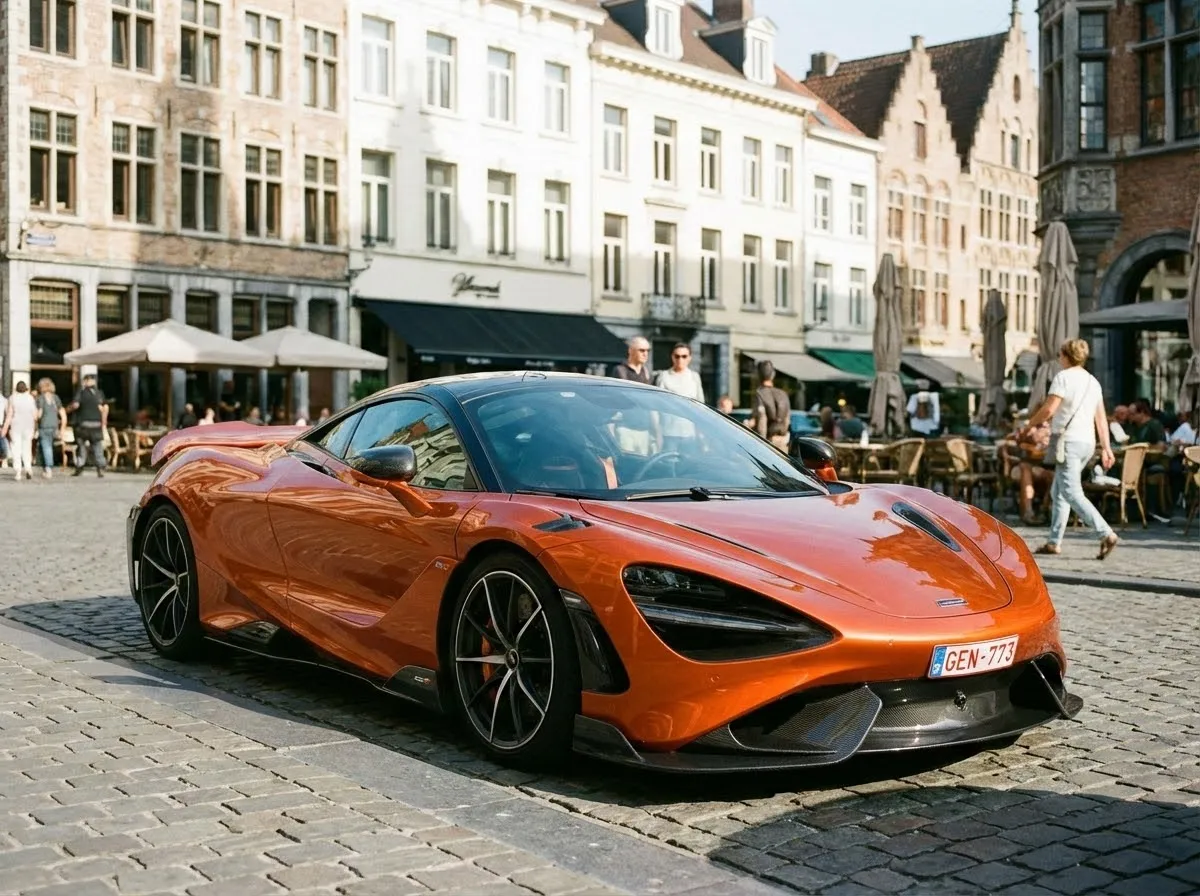 BeforeAfter
Style direction
Explore alternate looks, color direction, materials, and lighting while preserving the core subject.
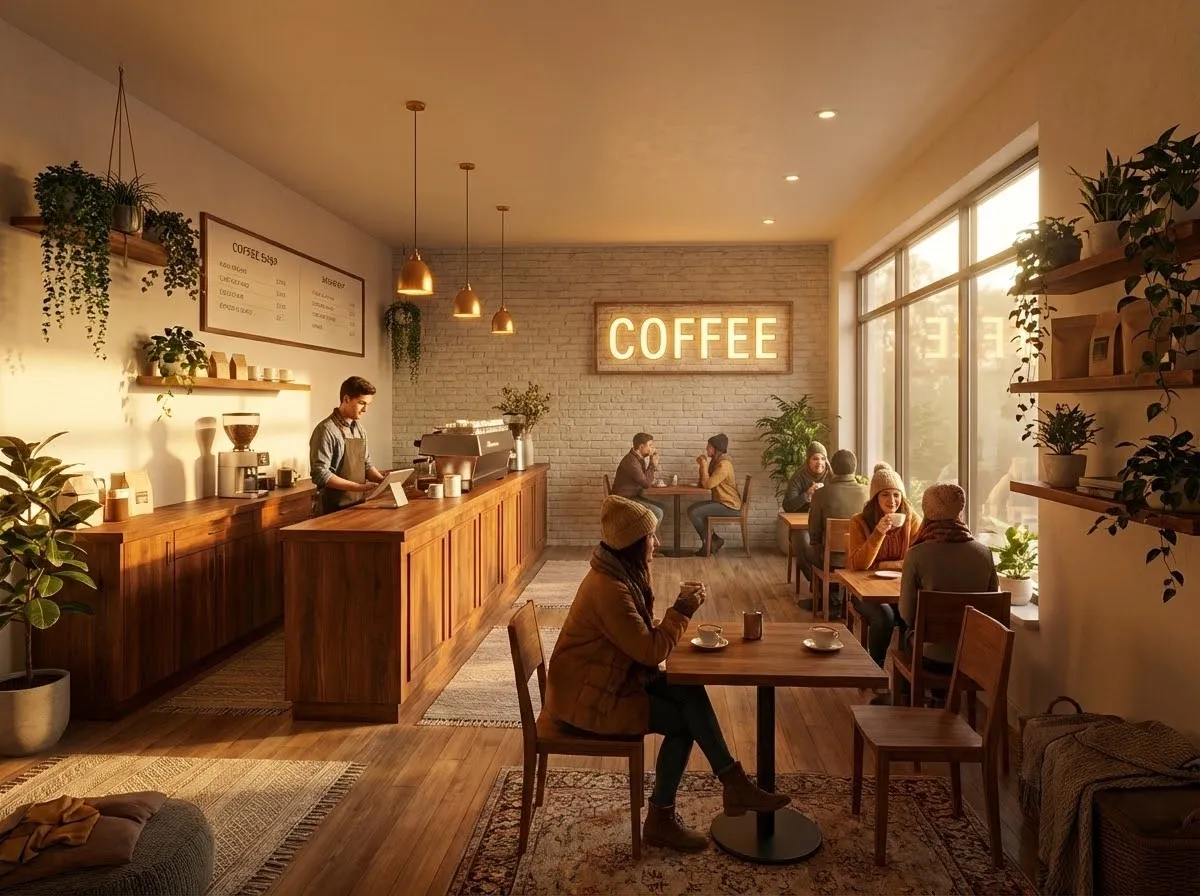
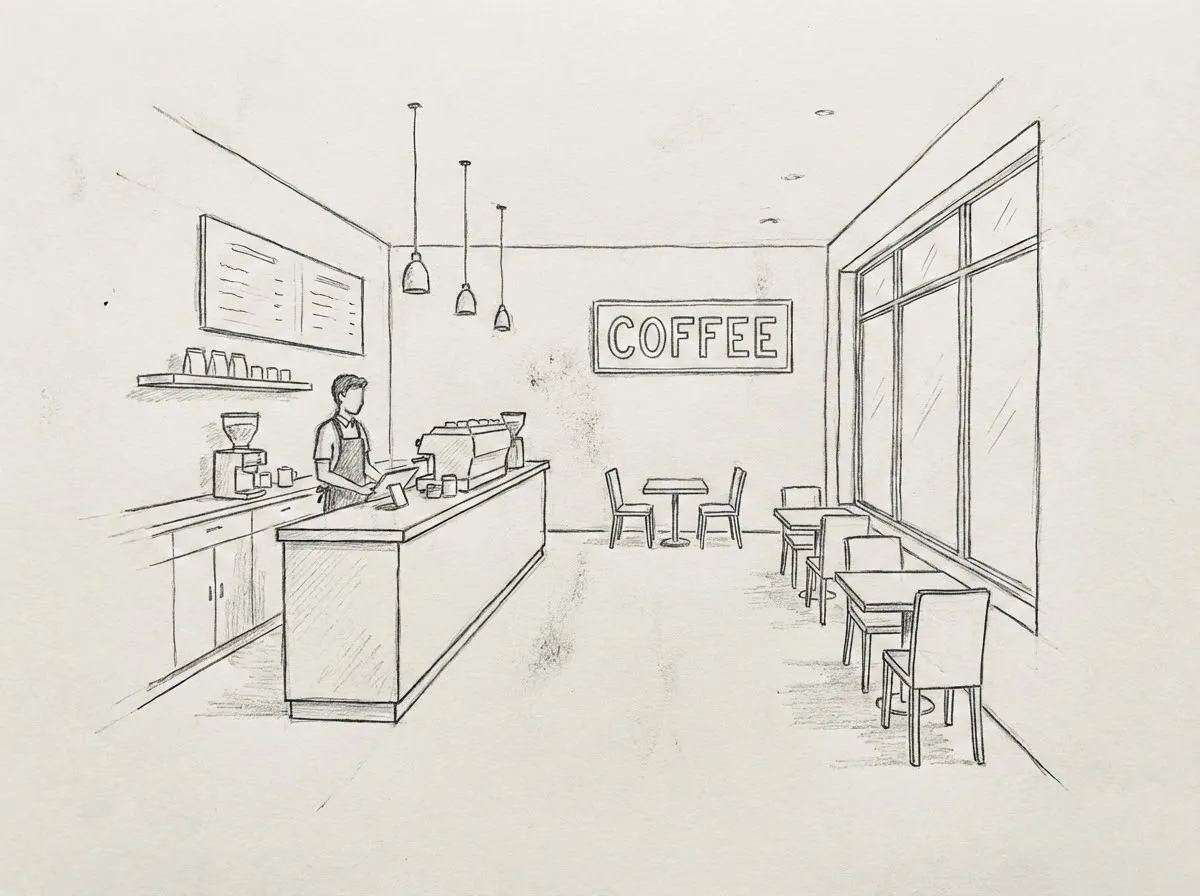 BeforeAfter
Sketch to finished visual
Turn rough ideas and early sketches into clearer visuals for review, pitch decks, or product planning.
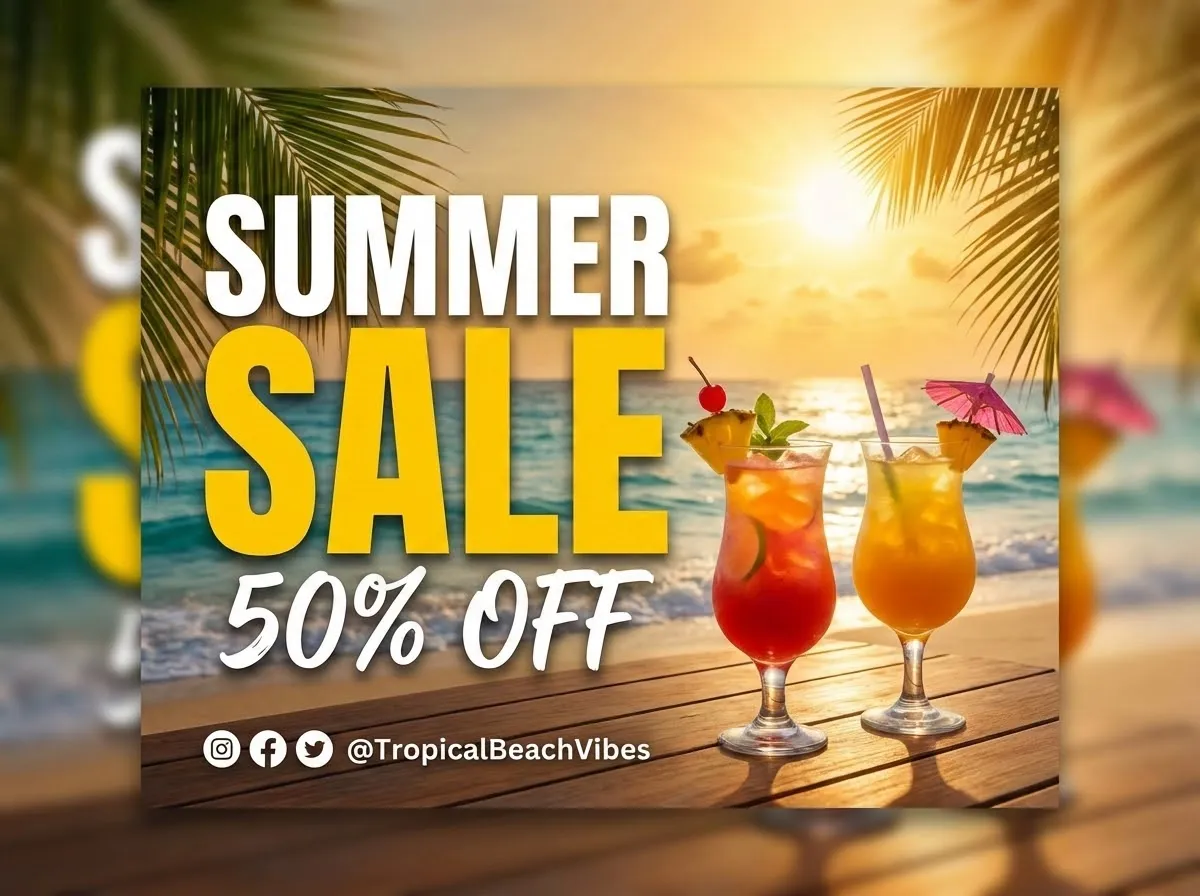
Marketing image layout
Create polished campaign images, thumbnails, and announcement visuals from one source asset.
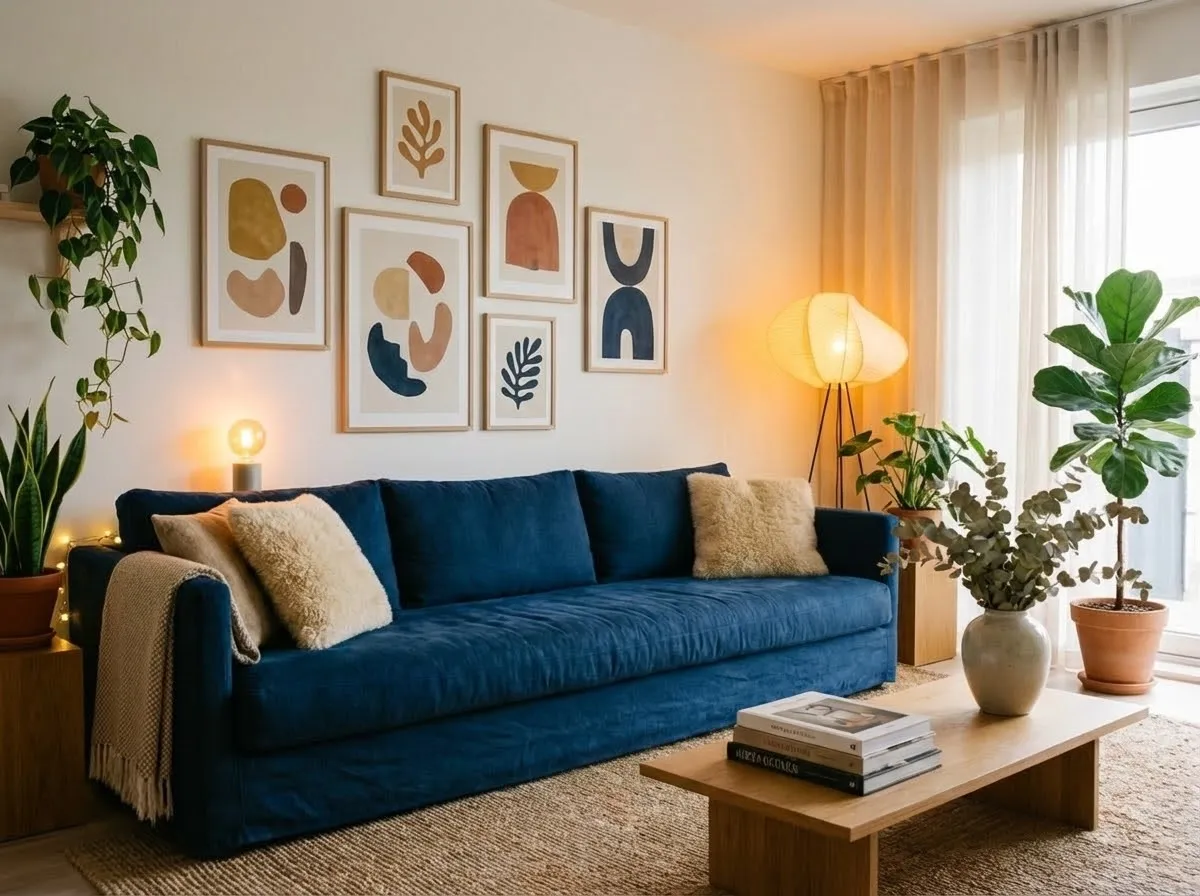
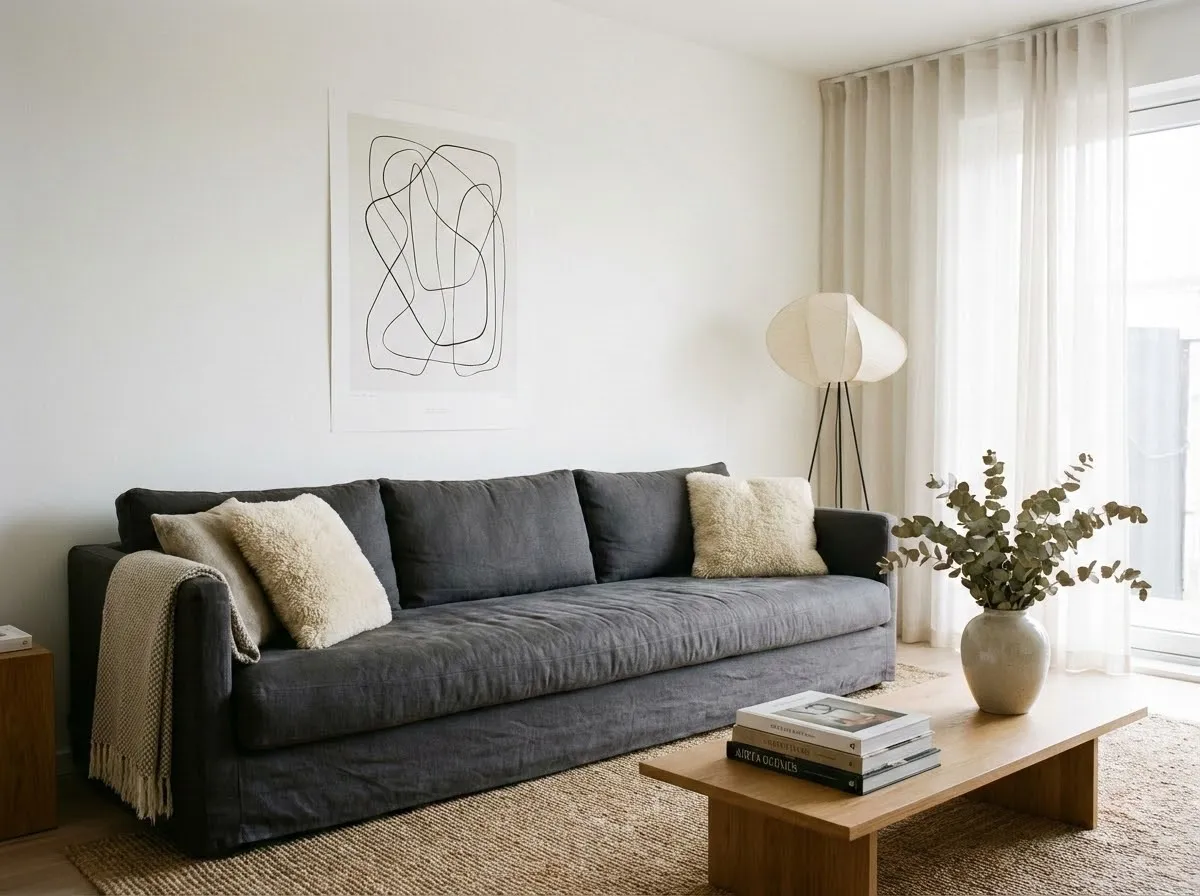 BeforeAfter
Object cleanup and replacement
Remove distractions, replace objects, and refine details while keeping the image natural.
Versatile AI Image Editor workflows
Edit images with practical creative controls
Use explicit preservation instructions and references while changing backgrounds, objects, style, layout, lighting, or visual direction.
Product visuals
Create polished product shots, campaign images, and visual variations without a full shoot.
Style and scene transfer
Use prompts and references to shift mood, styling, scene, background, and art direction.
Campaign-ready layouts
Build posters, covers, layouts, and branded images with clearer composition and typography guidance.
Multi-format output
Prepare assets for social, ads, landing pages, stores, thumbnails, and campaign variants.
AI Image Editor generator
How to use AI Image Editor
Define the result, add the required source material, compare the live model controls and credit estimate, then render a small test before scaling.
Upload the image
Start with a product, portrait, object, sketch, or campaign asset you want to improve.
Describe the edit
Describe the exact change and what must stay fixed: identity, product shape, logo, material, color, framing, or typography.
Export the result
Choose a model, ratio, resolution, and format, then inspect preservation and edit accuracy before exporting.
Questions
Common questions before generating
Can a SOTA AI image editor preserve a face or product?⌄
Preservation depends on the model, source quality, and prompt. State exactly what must not change, use additional references when supported, and inspect identity, geometry, logos, text, and materials before publishing.
When should I use AI image editing instead of text-to-image?⌄
Use image editing when an existing subject, product, layout, or composition must remain recognizable. Use text-to-image when you want to explore a new visual from a written brief.
How are credits charged?⌄
Each model estimates credit cost before generation. Higher resolution, longer duration, or audio-enabled video usually costs more.
Do credits expire?⌄
Credit rules depend on your plan or purchase. Your current balance is shown before you generate.
How long does generation take?⌄
Most short generations take a few minutes, but queue load, duration, resolution, and model choice can affect timing.
Can I use generated media commercially?⌄
Most outputs are designed for commercial workflows such as ads, social posts, product pages, and launch assets. Always make sure you have rights to uploaded source materials.
Which formats are supported?⌄
Video tools return browser-ready video files. Image tools can generate common image formats such as PNG, JPG, or WebP depending on model support.
Where do my generations go?⌄
Use the dedicated tool pages for focused creation, then review every finished task in Creations from your account.
What if a generation fails?⌄
If a generation fails, keep the task ID and contact support from your account. Failed tasks can be reviewed without exposing provider internals.
Can I cancel later?⌄
You can stop using credits at any time. Subscriptions and billing are managed from your account settings.
Is SOTA AI Image Editor free to try?⌄
New users can try SOTA AI Image Editor with available free starter credits, then add more credits or choose a plan when they need higher volume.
Will outputs have a watermark?⌄
Free generations include a small branded watermark. Paid generations and private outputs are watermark-free.
Who is responsible for rights and source assets?⌄
You are responsible for uploaded assets, prompts, and final usage. Avoid uploading materials you do not have permission to use.
Explore SOTA AI Video
Related AI video tools and model comparisons
Move between SOTA AI model comparison, image-to-video, text-to-video, motion transfer, image generation, and pricing in one workflow.
Choose a model, then create
Start with the output requirement, compare supported controls and cost, add references when needed, and generate in the browser.